
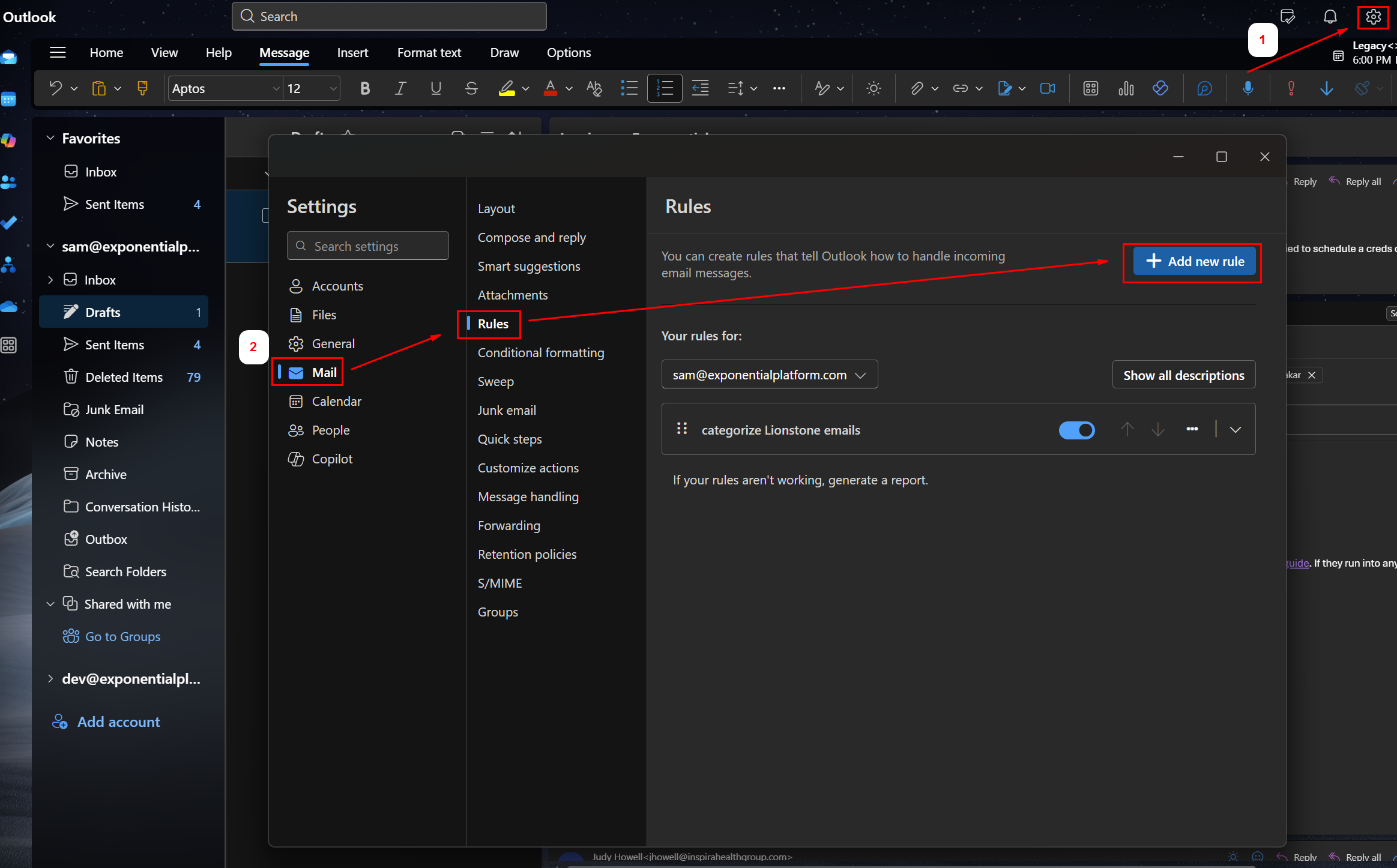
💻 Step 1: Open Settings in Your Work Inbox
Open your company Outlook account on your computer.
Click the gear icon in the top-right corner.
In the left menu, go to Mail > Rules.
Click “+ Add new rule”.
✏ Step 2: Create a Forwarding Test Rule
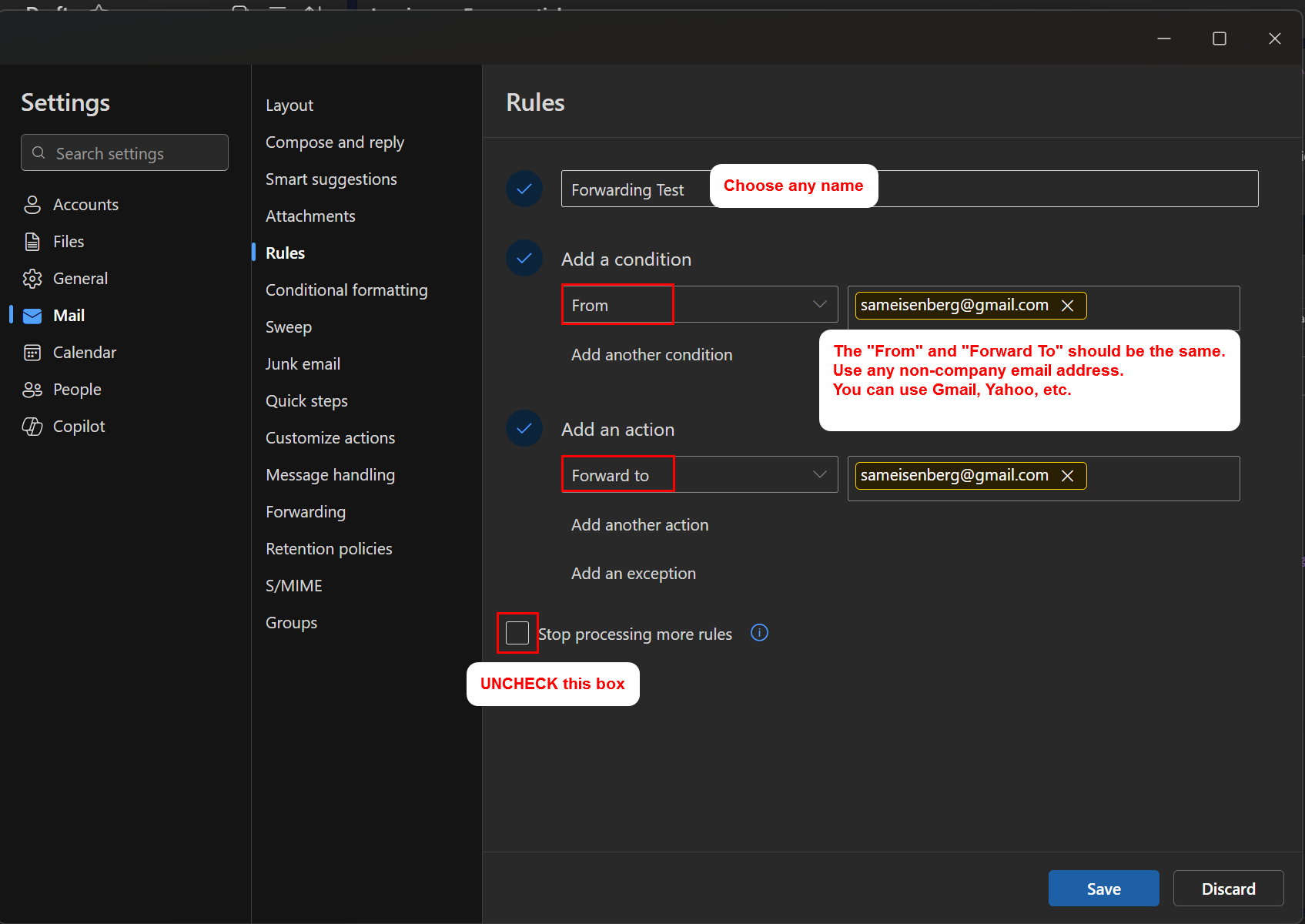
Give your rule a name like “Forwarding Test.” (you can give it any name)
Under “Add a condition”, select
Fromand type your personal email address (e.g.,[email protected]).Under “Add an action”, select
Forward toand enter that same personal email address again.Uncheck the box that says "Stop processing more rules."
Click Save.
📤 Step 3: Send a Test Email
Open your personal email (Gmail, Yahoo, etc.).
Compose a new email to your company email address.
Write anything in the subject and body and send the email
Subject: Forwarding Test
Body: Testing 123.
✅ Step 4: Check If It Worked
Wait a minute or two.
Open your personal email inbox.
If the email you sent shows up there, then auto-forwarding is allowed.
If nothing arrives (check spam/junk) or if you receive an error email in your company inbox, then we need to ask IT to open up email forwarding.
Here is a guide you can share with IT:
How to enable email forwarding in Outlook